
TeraRecon brand kit
Essentials
Logo

Charcoal on White, Bone, Cyan and Aqua. White on Cobalt, Deep Cobalt, the Cobalt Gradient and Charcoal. One flat color, no effects, full lockup. Which logo on each color
Color
Cobalt
#004AFFDeep Cobalt
#221ECDCyan
#00C2FFCharcoal
#404040Bone
#F5F5F2White
#FFFFFFClick any value to copy it.
Type
AaAa
- Headlines
- Public Sans Extra Light, sentence case: capitalize the first word and proper names, nothing else
- Body
- Public Sans Regular
- PowerPoint
- The Public Sans template, fonts embedded and spacing built in. For new text, copy a placeholder rather than starting a text box.
Files
Set up a Teams background
- Before or during a meeting, open Effects and avatars (or More › Video effects).
- Choose More video effects › + Add new and pick the downloaded file.
- Select it. Your own preview looks mirrored. This is normal: everyone else in the meeting sees the logo the right way round.
If it looks backwards, you're doing it right.



Set up a LinkedIn banner
- On your profile, select the camera icon on the background image.
- Choose Upload photo, pick the file, and leave the zoom at the default.



Add an email-signature banner
- In Outlook, open Settings › Accounts › Signatures (on desktop, File › Options › Mail › Signatures).
- Put the cursor under your details and insert the picture.
- Set its width to 600 px and link it to terarecon.com.
- Send yourself a test before you use it.



PowerPoint and Public Sans
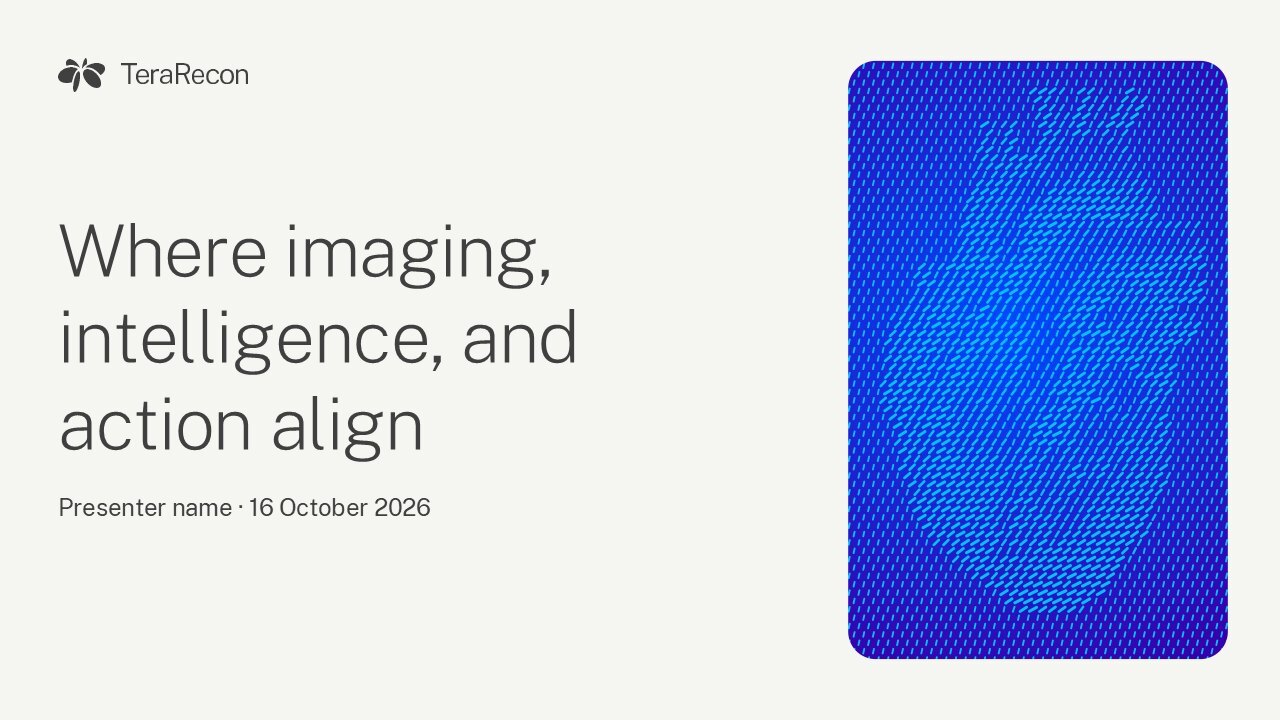
- Unzip the download, install the Public Sans files from its fonts folder, then double-click the PowerPoint template. PowerPoint opens a new, untitled deck from it.
- Choose layouts from Home › New Slide; the cover, section, content and closing layouts carry the brand art.
- When you save, keep File › Options › Save › Embed fonts in the file on, so Public Sans travels with the deck.

Who to ask
Steven Brown
Brand guide owner, brand questions
sbrown@concertai.com
Send what you're making, where it will appear and a draft.