Resources
Downloads
The right file, ready to use.
Choose a logo, start from a template, or set up the tools you use every day.
Logo files




For icon files and special treatments, see Logo · Special uses. Ask for PDF or EPS artwork when a printer needs it.
Decks, documents and design files
Letterhead by office
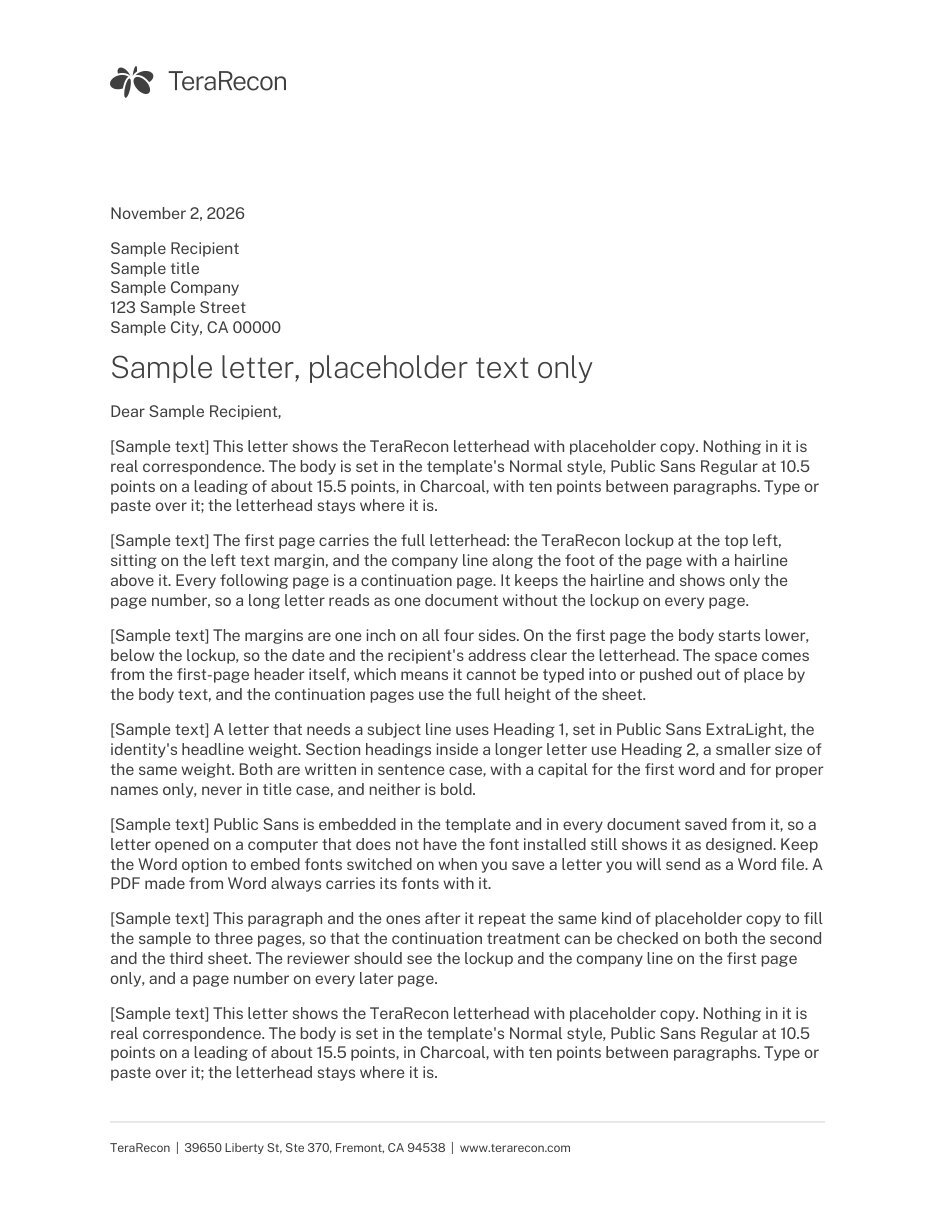
One Word template per office and paper size: US Letter for every office, A4 for Frankfurt and Tokyo. Public Sans is embedded, so nothing needs installing.
- Download the Word template for your office and double-click it. Word opens a new, untitled letter from it.
- Click each gray prompt (the date, the recipient, the subject, the letter, your name) and type over it. The first page carries the logo and your office's address; later pages show the page number.
- Keep File › Options › Save › Embed fonts in the file on, so Public Sans travels with a letter you send as a Word file. To send a PDF, use File › Save As and choose PDF.
For a printer: Fremont, CA (US Letter) PDF, Frankfurt, Germany (A4) PDF, Frankfurt, Germany (US Letter) PDF, Tokyo, Japan (A4) PDF, Tokyo, Japan (US Letter) PDF.
Your everyday tools
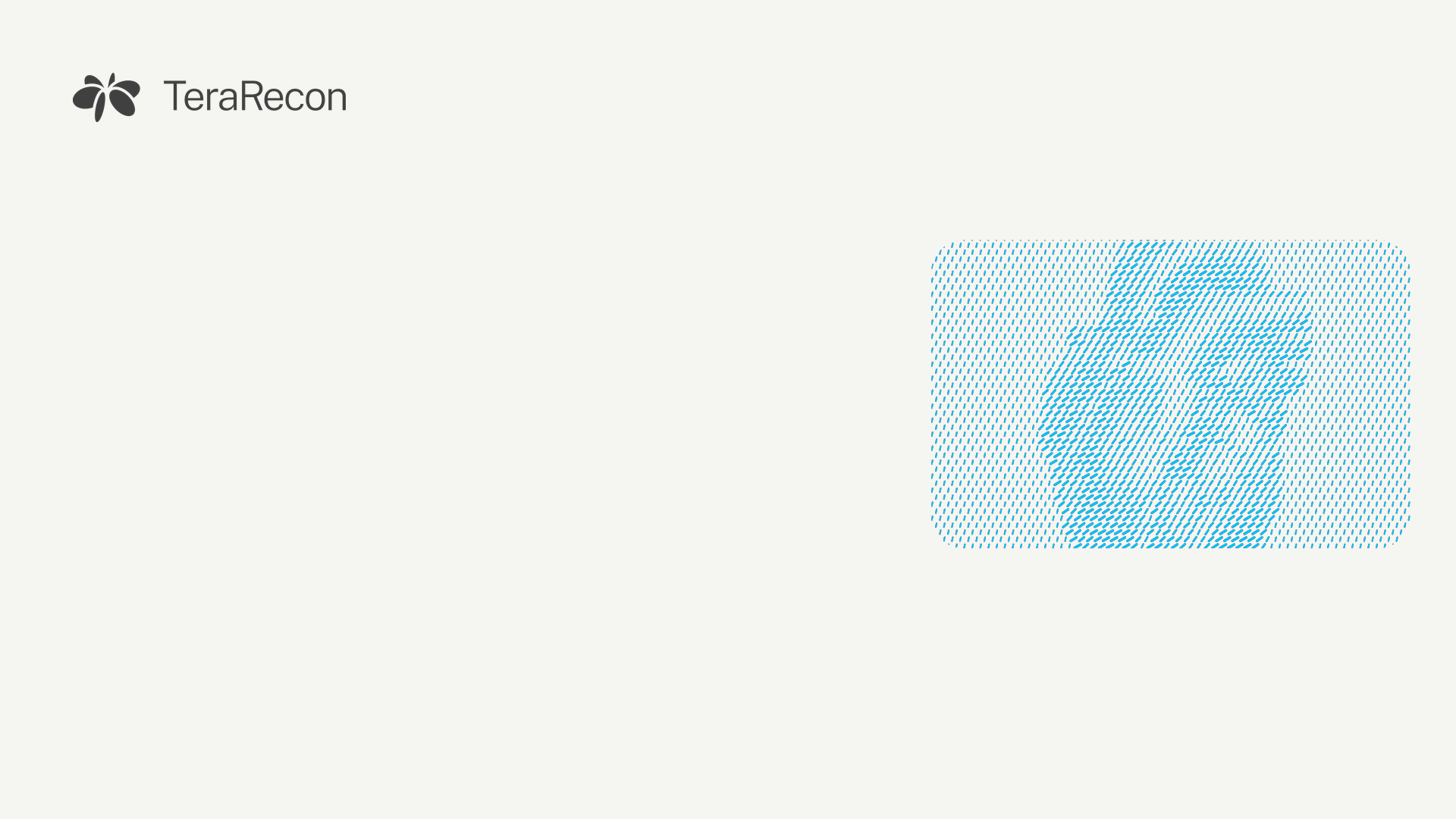
Teams backgrounds
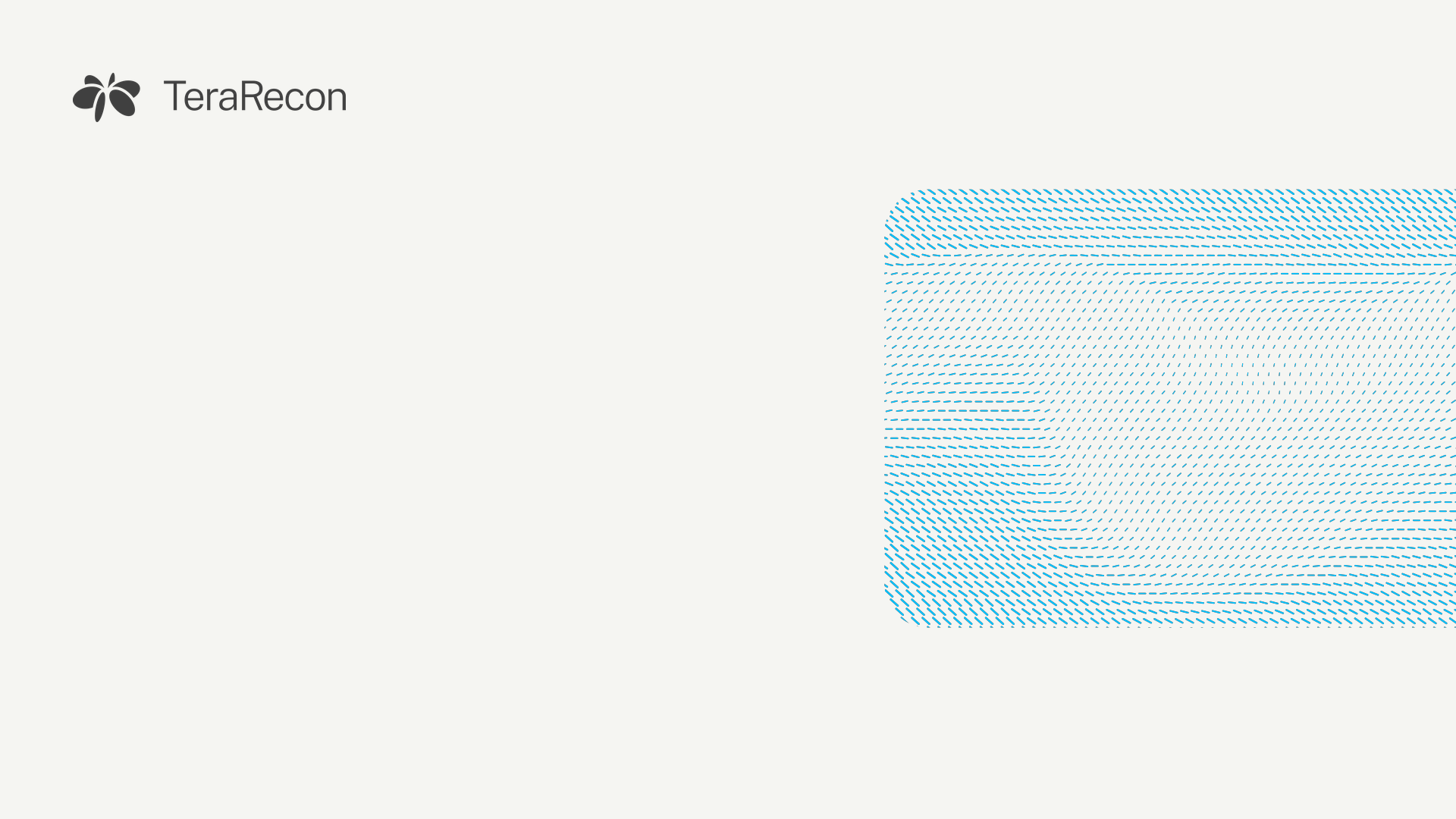
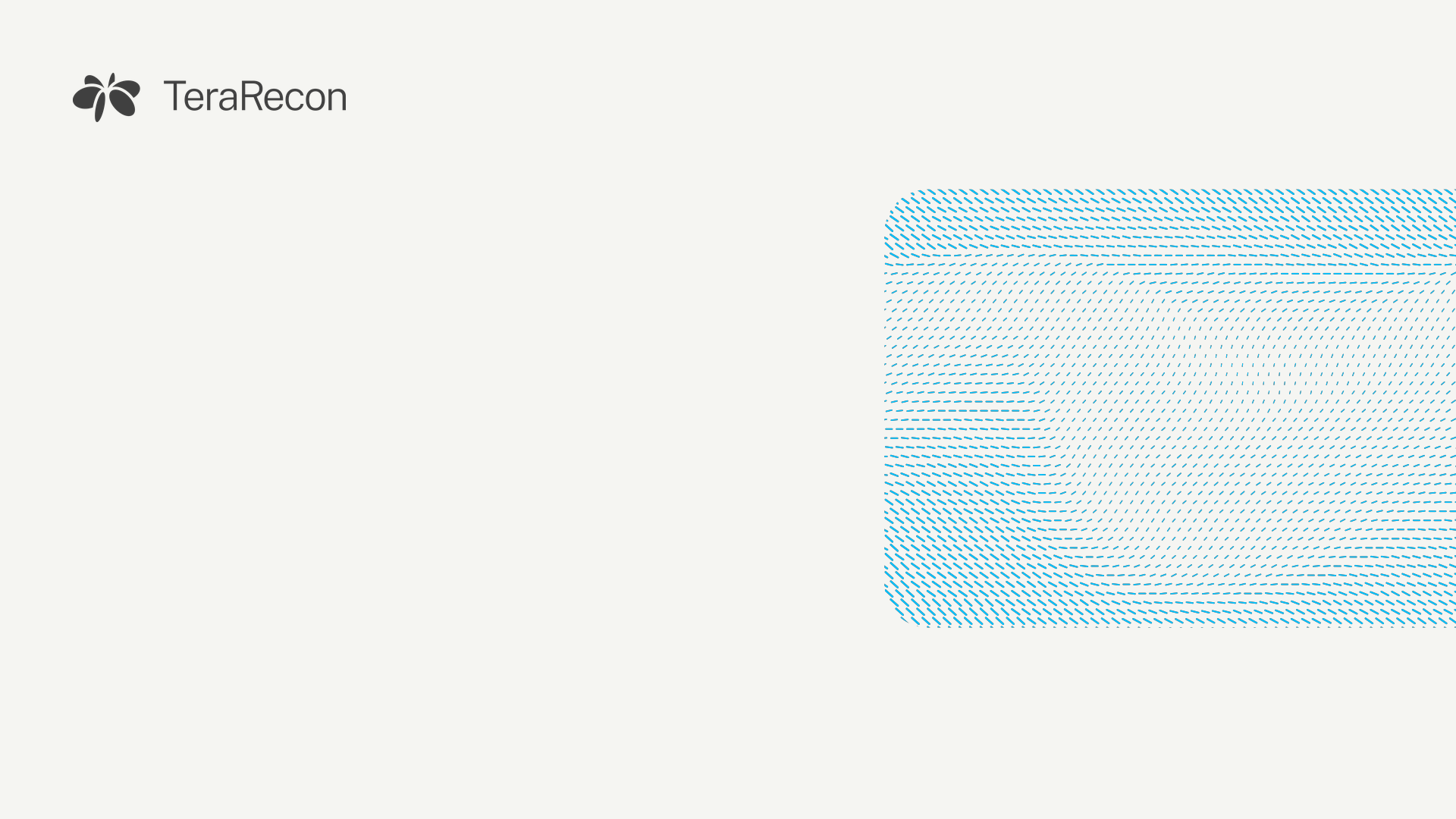
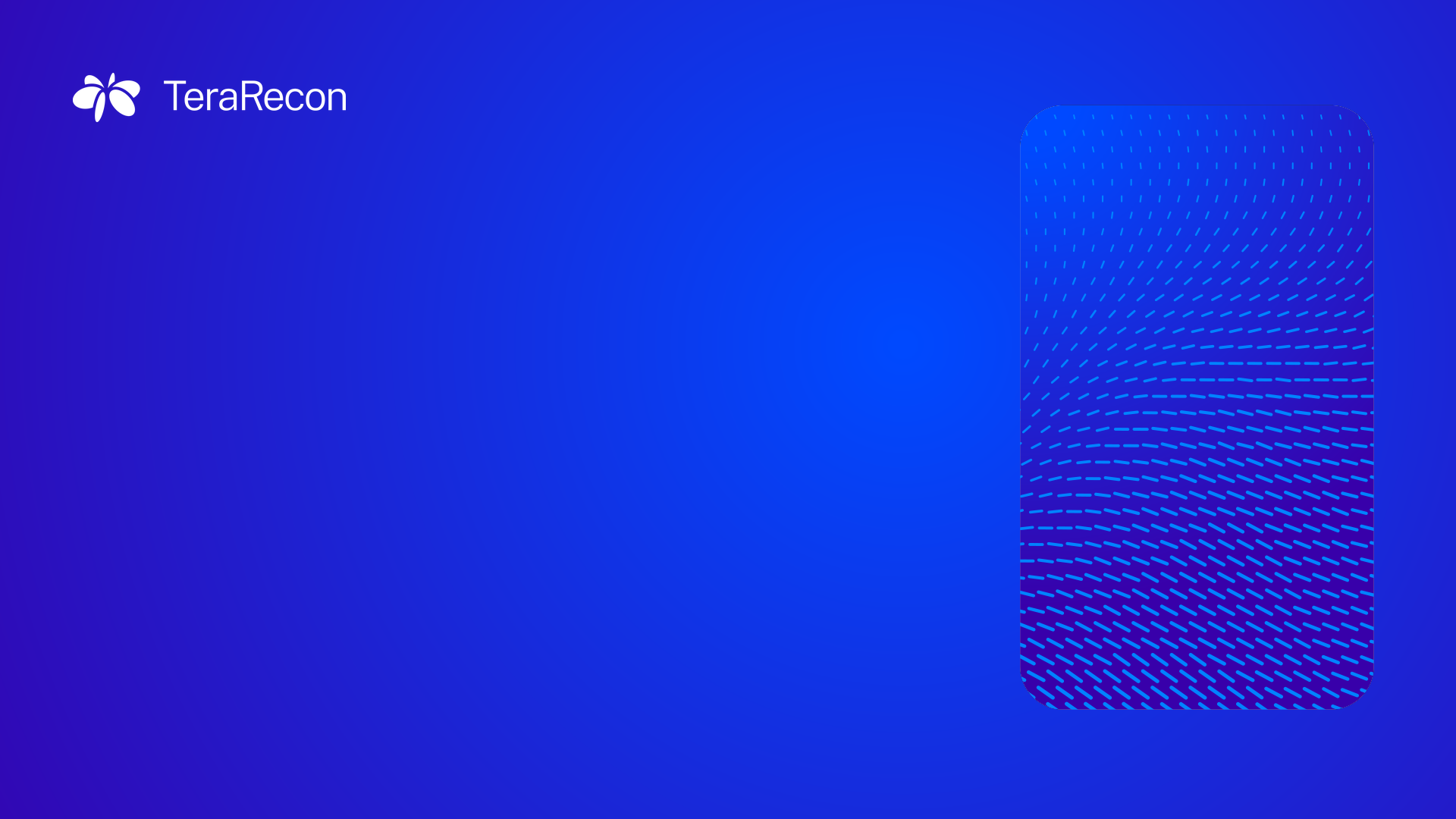
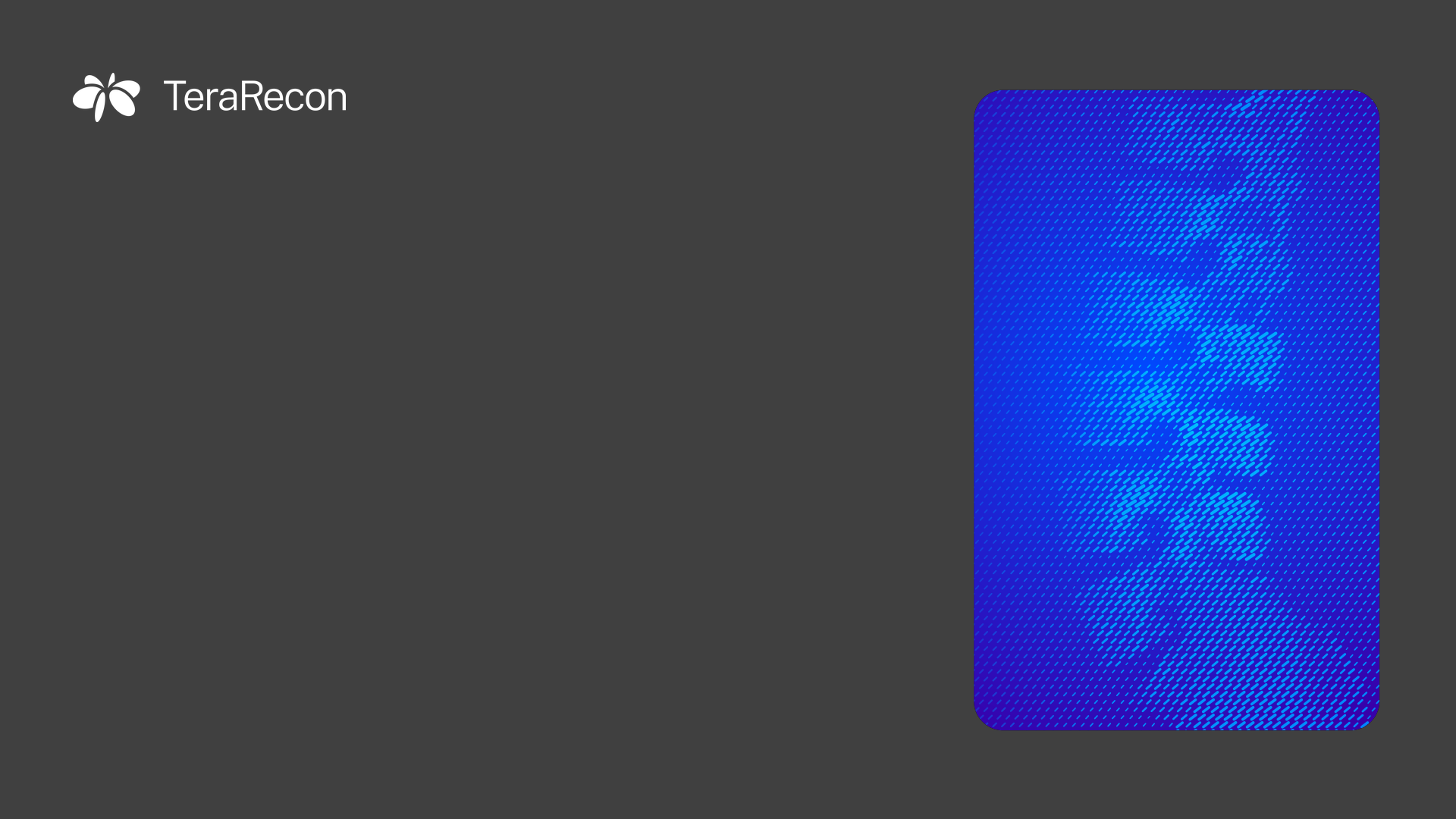
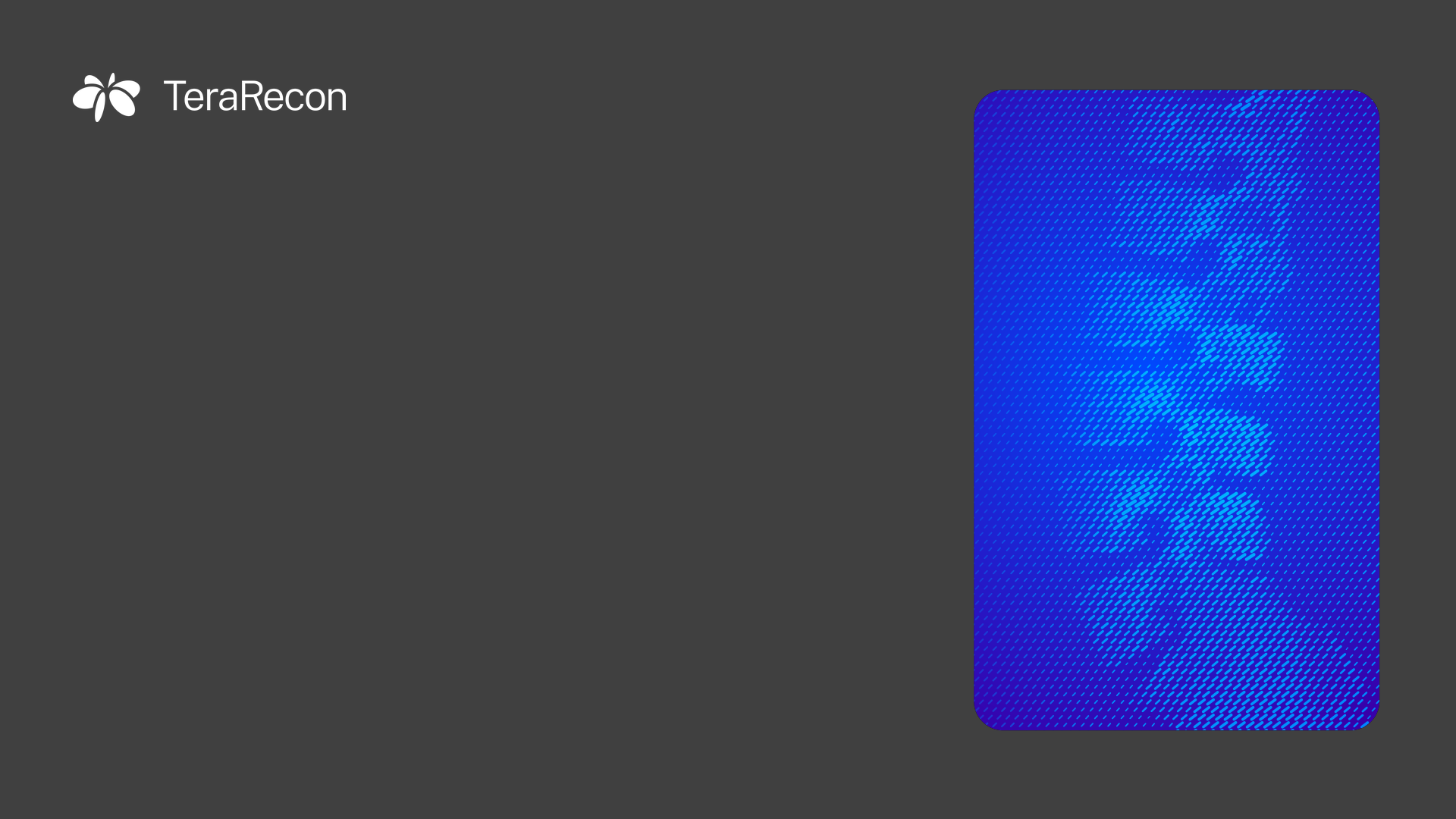
1920 × 1080. The art sits at the sides and the logo top left, so your face stays clear and the logo isn't hidden behind your name label.
- Before or during a meeting, open Effects and avatars (or More › Video effects).
- Choose More video effects › + Add new and pick the downloaded file.
- Select it. Your own preview looks mirrored. This is normal: everyone else in the meeting sees the logo the right way round.
PNG 282 KB
PNG 168 KB
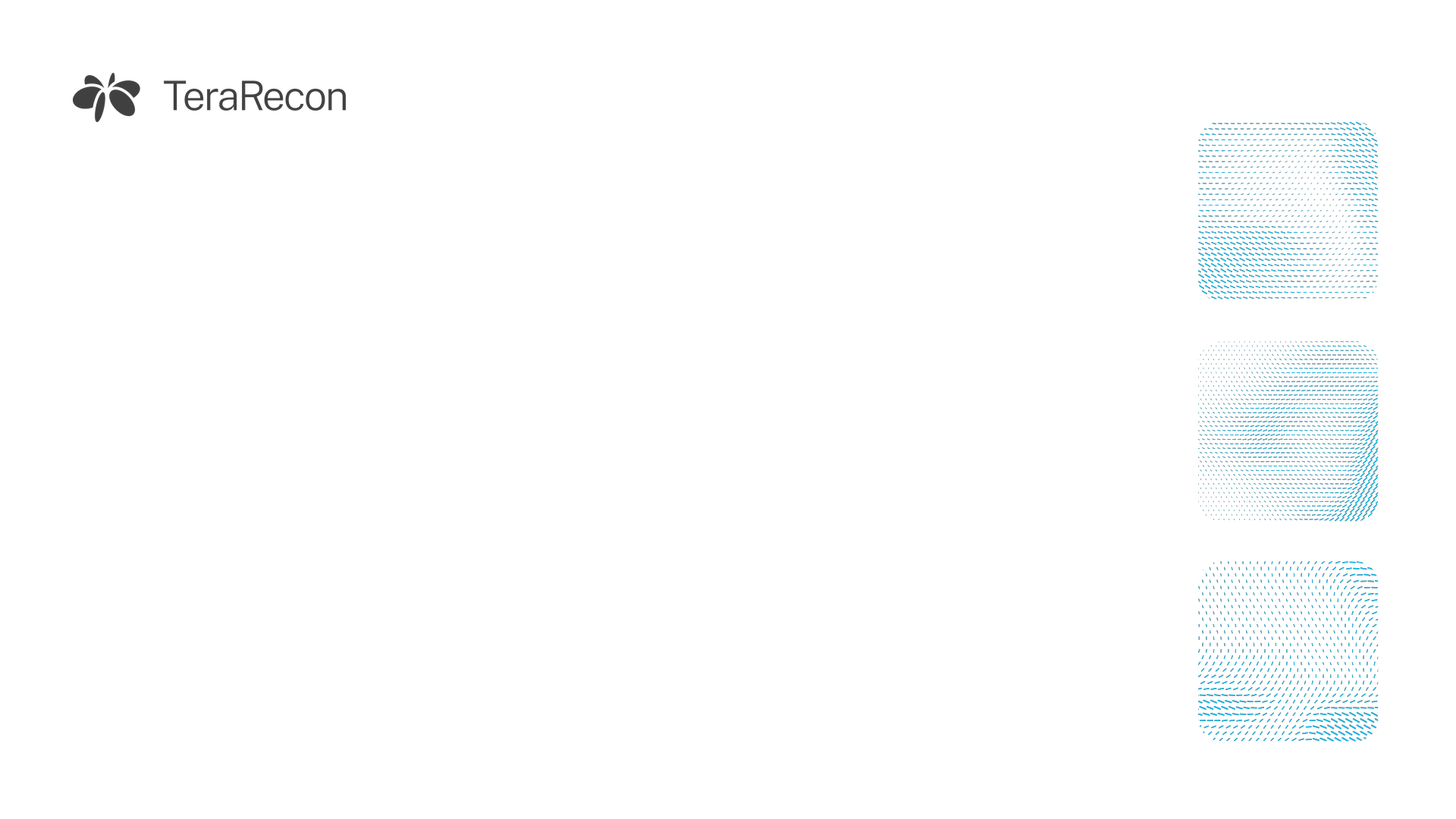
PNG 279 KB
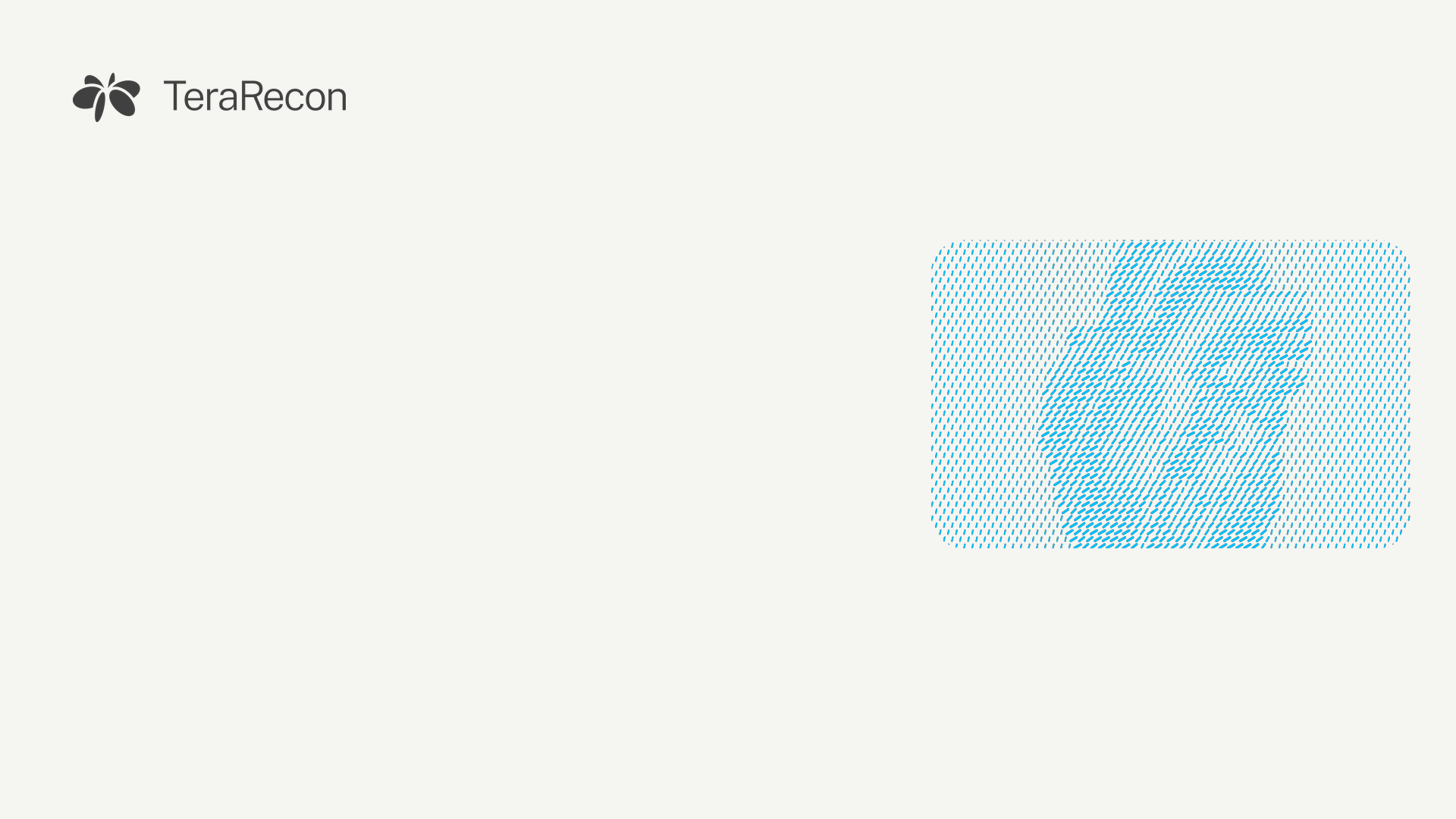

PNG 688 KB

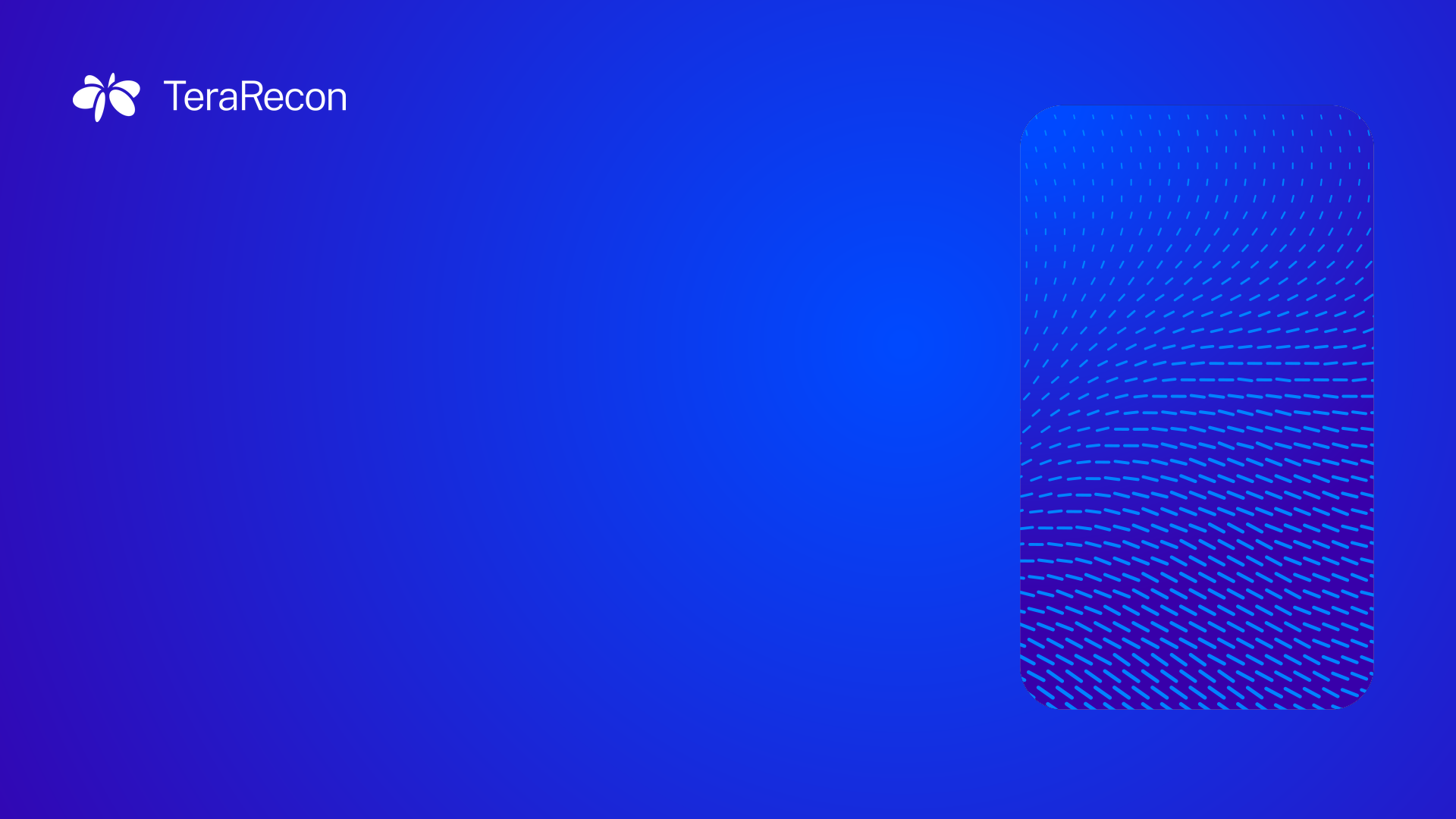
PNG 315 KB
PNG 494 KB
LinkedIn profile banners
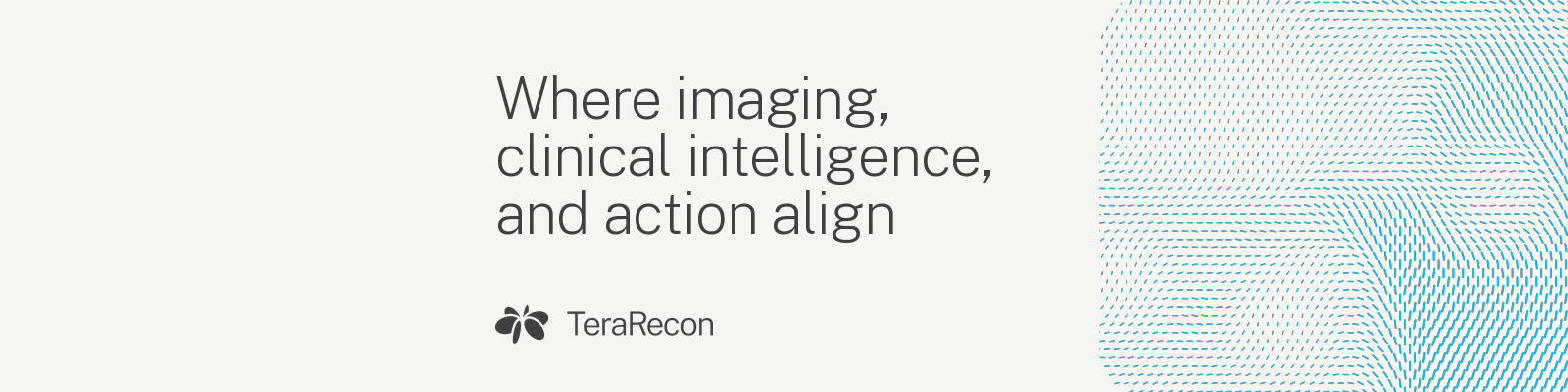
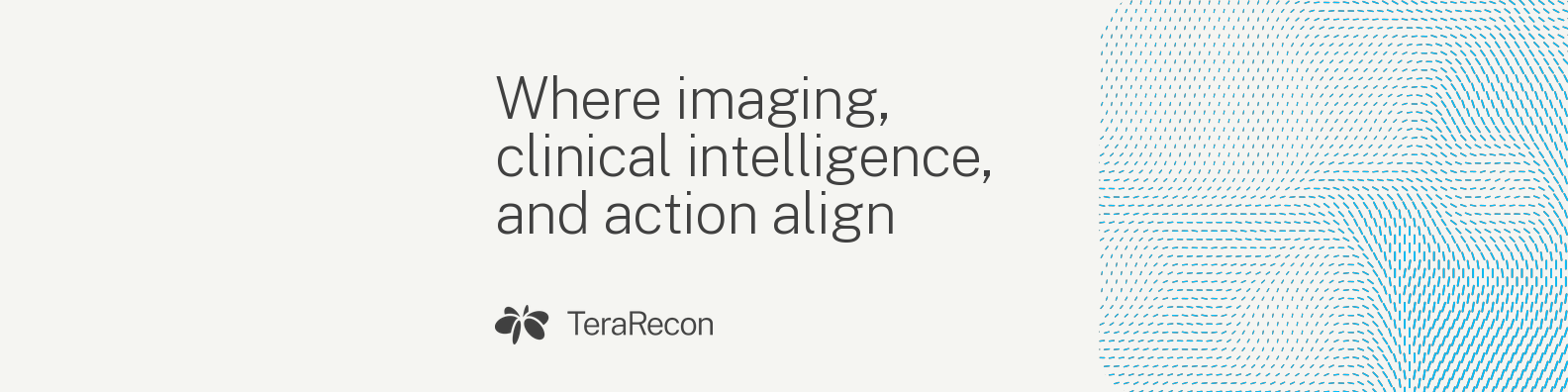
1584 × 396, LinkedIn's size for a profile background. Your profile photo covers the lower left (the gray circle; hover over a banner to hide it), so the copy starts to its right. There is no template for post images yet.
- On your profile, select the camera icon on the background image.
- Choose Upload photo, pick the file, and leave the zoom at the default.

PNG 179 KB

PNG 195 KB

PNG 309 KB

Create your email signature
The signature is set in Public Sans, with Arial for readers who don't have it. The banners are made at 1200 × 240 and shown at 600 × 120, so they stay sharp on high-resolution screens.
- Type your details into the form, with your @terarecon.com email, and pick your office. The preview shows your signature as it will look.
- Select Copy signature.
- In Outlook, open Settings › Accounts › Signatures (in classic Outlook for Windows, File › Options › Mail › Signatures), start a new signature and paste.
- To add a banner, put the cursor under the address, insert one of the banners, set its width to 600 px and link it to terarecon.com.
- Choose the signature for new messages and for replies, then send yourself a test.
A sample signature, with placeholder details. Make your own with the form on the guide's web page.
| Your Name |
| Your title |
| Mobile +1 000 000 0000 |
| your.name@terarecon.com |
 |
| www.terarecon.com |
| TeraRecon | 39650 Liberty St, Ste 370 Fremont, CA 94538 |
The form needs JavaScript. Without it, select the signature, copy it, and change the details after you paste.

PNG 41 KB


PNG 191 KB


PNG 105 KB

Need production artwork?
The asset catalog holds particle-flow artwork, 3D renderings and print files, and opens with a passcode. If you cannot find what you need there, ask Steven. Send the draft and explain where it will appear.
Ask Steven Brown ↗